
A Personal 3D Portfolio Room in React Three Fiber: Hover Glow, Click to Open, Pointer Drift and a Contact Form to FastAPI
Your work lives in a small 3D room: hover the monitor and it glows amber at 0.35 emissive, click and the Pulseboard project slides in, the camera drifts with the pointer, the About types itself two characters every 18 ms, and the contact form shows FastAPI's 400 messages under each field.
What you will learn
- Build a room from simple box meshes and wrap only the clickable objects in a Hoverable
- Make one object glow on hover by setting its emissive colour, and open a project panel from one piece of state
- Drift the camera toward the pointer with useFrame and damping, without orbit controls
- Type an About section with a counter, and show the server's per-field errors from a FastAPI contact endpoint
Before you start
- React useState, useRef and useEffect
- A 3D product page in React and Three.js
A portfolio, but not a boring one: your work lives inside a small interactive room. You hover an object, you click it, and a project opens. Imagine walking into someone's workroom where everything they've built is lying around on the desk and the shelves. That's the idea. You build it with AI and then review it, so the goal here is to know what each part does.
The finished project first
The live demo opens the project in PyCharm. There are two halves: backend-fastapi is the Python back end, and src is the React front end. Two run configurations start them: Frontend - Vite prints the address for the page (Vite's dev server, localhost:5173), and Backend - FastAPI prints its log in red, which is just how it prints; the last line says application startup complete.
In the browser: hover the monitor and it glows with a small label; click it and a panel slides in with that project's details. Further down, fill in the contact form and send it, and the page says thanks. Back in PyCharm's back-end tab, the server wrote a line with the name and message, and a line saying the request was created. The page and the back end are two separate programs, and the form is how they talk.
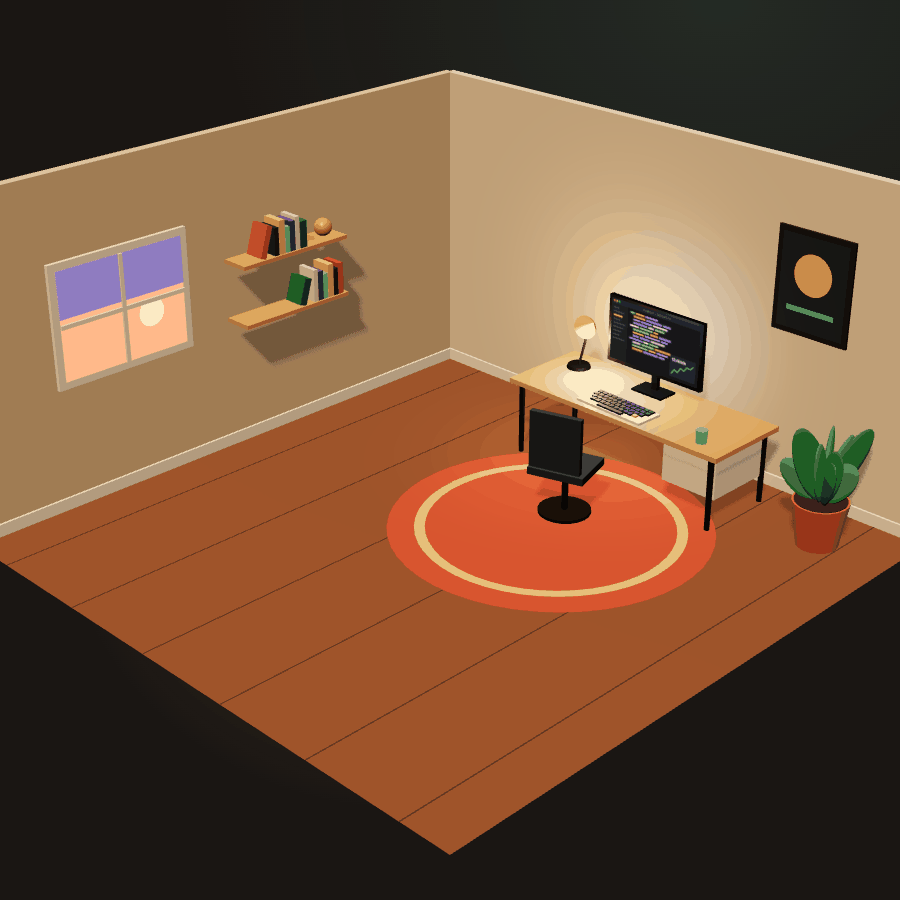
The room: everything is a simple shape
A desk, a monitor, a keyboard, a shelf, a plant and a window, all made from simple shapes, with no model files to download. The desk is one mesh with a box geometry two and a half units wide:
<boxGeometry args={[2.5, 0.05, 0.95]} />In Room.tsx, only four objects are wrapped to be clickable; the rest is set dressing:
<Hoverable id="monitor" label="Pulseboard" labelAt={[0.25, 1.75, -2.5]}><Monitor /></Hoverable>
<Hoverable id="keyboard" label="Typecast" labelAt={[0.25, 1.0, -1.9]}><Keyboard /></Hoverable>
<Hoverable id="shelf" label="Folio" labelAt={[-2.8, 2.45, -0.6]}><Shelf /></Hoverable>
<Hoverable id="plant" label="Sprout" labelAt={[2.3, 1.55, -2.35]}><Plant /></Hoverable>
Hover: a warm glow on one object
From room/Hoverable.tsx:
const GLOW = new THREE.Color('#ffb35c')
// ...
  // The trick: walk the meshes and push their emissive toward amber while active.
  useEffect(() => {
    group.current?.traverse((o) => {
      const m = (o as THREE.Mesh).material as THREE.MeshStandardMaterial | undefined
      if (!m || !('emissive' in m) || m.userData.keepEmissive) return
      m.userData.base ??= { color: m.emissive.clone(), intensity: m.emissiveIntensity }
      m.emissive.copy(on ? GLOW : m.userData.base.color)
      m.emissiveIntensity = on ? 0.35 : m.userData.base.intensity
    })
  }, [on])

  const over = (e: ThreeEvent<PointerEvent>) => { e.stopPropagation(); setActive(id); document.body.style.cursor = 'pointer' }
  const out = () => { setActive(null); document.body.style.cursor = '' }
  const click = (e: ThreeEvent<MouseEvent>) => { e.stopPropagation(); select(id) }
When the object is active, the effect walks every mesh inside it and copies the warm orange into the emissive property, the light a material gives off by itself, at intensity 0.35. When it's not active, the original values go back. Three tiny handlers decide what's active: pointer over sets it to this id, pointer out sets it to null, click calls select. Each object has its own material (the file's comment insists on it), so only that one glows.
Click: the project panel
The text comes from one typed list in projects.ts:
export type ObjectId = 'monitor' | 'keyboard' | 'shelf' | 'plant'

export const PROJECTS: Project[] = [
  {
    object: 'monitor', objectName: 'Monitor', title: 'Pulseboard', year: '2026',
    tagline: 'Live ops dashboard for a 40-person logistics team',
    // description, stack, links ...
  },
  // ...
]
The page keeps one piece of state, the open id. When the room says select, the open id is set, and the panel shows that project, or nothing when it's null. The same list also makes plain buttons, so people using a keyboard or a phone can open every project too.
The room follows your pointer
const BASE = new THREE.Vector3(9.6, 6.6, 9.6) // isometric-ish corner view
const TARGET = new THREE.Vector3(-0.15, -0.25, -0.15)

/** Gentle parallax: the camera drifts a little toward the pointer (no OrbitControls). Static on reduced motion. */
function CameraRig({ reduced }: { reduced: boolean }) {
  const goal = useRef(new THREE.Vector3())
  useFrame(({ camera, pointer }, dt) => {
    if (reduced) return
    goal.current.set(BASE.x + pointer.x * 1.0, BASE.y + pointer.y * 0.6, BASE.z - pointer.x * 1.0)
    easing.damp3(camera.position, goal.current, 0.5, dt)
    camera.lookAt(TARGET)
  })
  return null
}
useFrame runs every frame. With reduced motion it simply returns. Otherwise the goal is the base position plus the pointer: times 1 on x, times 0.6 on y, minus the pointer on z. damp3 moves the camera toward that goal a little each frame, so it feels weighty, and lookAt keeps it facing the middle of the room. No orbit controls needed. You don't need to memorise those numbers; ask AI for a drift, then change one number to feel the difference.
An About that types itself
From components/Terminal.tsx:
const FULL = LINES.map((l) => `$ ${l.cmd}\n${l.out}`).join('\n')
// ...
  const [n, setN] = useState(reduced ? FULL.length : 0)
  // when the section scrolls into view (IntersectionObserver):
      timer = window.setInterval(() => setN((v) => (v >= FULL.length ? (clearInterval(timer), v) : v + 2)), 18)
  // ...
  const shown = FULL.slice(0, n).split('\n')
One string, FULL, joins every command with its answer. What you see is its first n characters. An intersection observer waits until the section is visible, then a timer adds two characters every 18 milliseconds. Screen readers get the full text at once, and with reduced motion, so does everyone.
A form that shows the server's words
      const res = await fetch('/api/contact', { method: 'POST', headers: { 'Content-Type': 'application/json' }, body: JSON.stringify(body) })
      if (res.status === 201) { setErrors({}); setStatus('sent'); return }
      // ...
      setErrors(res.status === 400 && data.errors ? data.errors : { form: `Something went wrong (HTTP ${res.status}).` })
201 means thank you. 400 carries one message per field, and the form puts each under its input. A bad submit (wrong email, very short message) shows a message under each field; a good one says thanks.
The server side is a tiny endpoint with three rules: a name that isn't blank, a proper email, and a message between 10 and 2000 characters, each with a friendly message. The project has it in Java with Spring Boot (rules as annotations and @Valid) and in Python with FastAPI, with the same rules on a Pydantic model:
class ContactMessage(BaseModel):
    """What the contact form sends. The validators are the server-side rules."""
    name: str = ""
    email: str = ""
    message: str = ""

    @field_validator("name")
    @classmethod
    def check_name(cls, v: str) -> str:
        if not v.strip():
            raise ValueError("Please tell me your name")
        if len(v) > 80:
            raise ValueError("Name must be 80 characters or fewer")
        return v

    # check_email and check_message follow the same pattern ...


@app.exception_handler(RequestValidationError)
async def on_invalid(request: Request, exc: RequestValidationError) -> JSONResponse:
    """Turn a failed model check into 400 {"errors": {field: message}} that the form shows next to each input."""
    errors: dict[str, str] = {}
    for e in exc.errors():
        field = str(e["loc"][-1]) if e.get("loc") else "body"
        msg = e.get("ctx", {}).get("error")
        errors.setdefault(field, str(msg) if msg else e["msg"])
    return JSONResponse(status_code=400, content={"errors": errors})


@app.post("/api/contact", status_code=201)
def contact(msg: ContactMessage) -> dict[str, str]:
    # FastAPI runs the model's rules first; a failure never reaches this function body.
    log.info("New message from %s <%s>: %s", msg.name, msg.email, msg.message)
    return {"status": "received"}
Either way, the rules run before your code does. Good input gives 201 with status received; bad input gives 400 with one message per field. The rules live on the server, and the front end only shows what comes back. (More on Pydantic models: FastAPI request and response models.)
3D is heavy, so be kind to the device
On a phone the page shows a still picture of the room, with an Explore in 3D button. The scene is loaded lazily with lazy and import, and shown only when the browser supports WebGL and the screen isn't small, or the visitor asked for it. Same pattern as the 3D product page. With reduced motion there's no camera drift and no typing. A fast page with a small room beats a heavy one that stutters.
Quick recap
| Part | Key idea |
|---|---|
| Room | Box meshes; four objects wrapped in Hoverable |
| Hover | emissive to #ffb35c at 0.35, own material per object |
| Click | PROJECTS list, one open id, plain buttons too |
| Camera | useFrame + damp3 toward base plus pointer |
| About | FULL.slice(0, n), +2 chars every 18 ms when visible |
| Form | 201 thanks; 400 {"errors": {field: message}} |
Try it yourself
Add a fifth project: a new entry in projects.ts and the lamp wrapped in a Hoverable. Change the glow colour or strength in Hoverable.tsx. Then add a size rule on email in the server and watch the new message appear under the field without touching the front end.
Related course on Udemy
The Python Architect Masterclass: Full Stack to AI Engineer
Python, Django, FastAPI, React, Docker, AWS, LLMs, RAG, agents and MCP, from first steps to AI engineer.View on Udemy ↗: The Python Architect Masterclass: Full Stack to AI Engineer (paid course, opens in a new tab)Related posts
React State, Events, Lists and Conditional Rendering: Follow One Click
Follow one click through a React counter, render by render: what useState hands back, why a plain variable never updates the page, ternaries and &&, map with keys, and the index-as-key bug that moves a typed note to the wrong task.
React useEffect: When It Runs, What Cleanup Is For, and When You Don't Need One
Watch useEffect on a timeline with real render counts: the dependency array deciding re-runs, a timer cleanup that keeps one timer alive, the leak StrictMode exposes, and two effects you should delete (a copied total and a click flag).
Lifting State Up, Refs and React DevTools: Put State Where It Is Needed
A task board where the filter is stuck in one component, fixed by lifting it to App. Then useRef as a box React does not watch (three clicks, zero renders), a ref that refocuses an input, and the tree React DevTools shows.
Forms and Actions in React 19: Controlled Inputs, Form Actions, useActionState and useFormStatus
Four versions of an add-task form, traced with real logs: a controlled input, a classic onSubmit, a form action that gets FormData and resets itself, and useActionState with a pending button from useFormStatus, plus the draft trick that keeps typed text after an error.