
Upgrade a Dated UI From One Screenshot (or a Reference Image)
A booking page that works but looks years old gets a modern look from one screenshot and one plain request to the agent. Then an old blog takes on the feel of a reference image while keeping every post and link. The picture shows what to change; your words say what must stay.
What you will learn
- Say in your own words why a page looks dated
- Upgrade a page with one screenshot and one plain request that says what to keep
- Restyle a page to match a reference image while keeping every post and link
- Check the upgrade by eye before you accept it
Before you start
- Your Brand Rules Folder
- Using an AI agent in your editor (PyCharm, IntelliJ or VS Code)
Here's a hotel booking page that works fine, but looks like it was built years ago. In this lesson we upgrade it with one screenshot and a plain request to the agent in PyCharm. Then we redo an old blog from a picture of the look we want.
Why this page looks dated
The page is a "New Booking" form with six fields: guest name, email, room type, check-in, check-out and guests, then Save booking and Cancel. Before asking for anything, say what bothers you in your own words:
- Borders everywhere. Every label sits in its own little box.
- The text is tiny, so you lean in to read it.
- The buttons are grey and flat, so you can't tell which one matters.
The fields are fine, though. Nothing is missing. Only the look is old, and that's what we'll tell the agent.
Way 1: one screenshot, one plain request
In PyCharm the page is open in the preview and the AI Chat panel is set to the agent. IntelliJ and VS Code work the same way. Take one screenshot of the page and drop it into the chat. Then one plain request:
This booking page looks dated. Make it feel modern and clean, follow the brand folder, and keep every field and the same flow.The agent looks at the screenshot, reads the brand rules, and edits the stylesheet. It replies: "Done. Same fields, same order, new look." The preview updates with a calmer header, bigger labels, and a main button that finally stands out. Cancel steps back quietly.
"Follow the brand folder" works because the project has one; see Your Brand Rules Folder.
Way 2: show the look you want
Sometimes you already know the look you want. Our second page is a blog called RedBlog, and it looks just as old: a plain title line, a row of links ("Home | Blogs | About | Write a Blog"), and three posts written as "Posted by John Doe on Jan 20, 2025 in Travel" with a "Read more..." link.
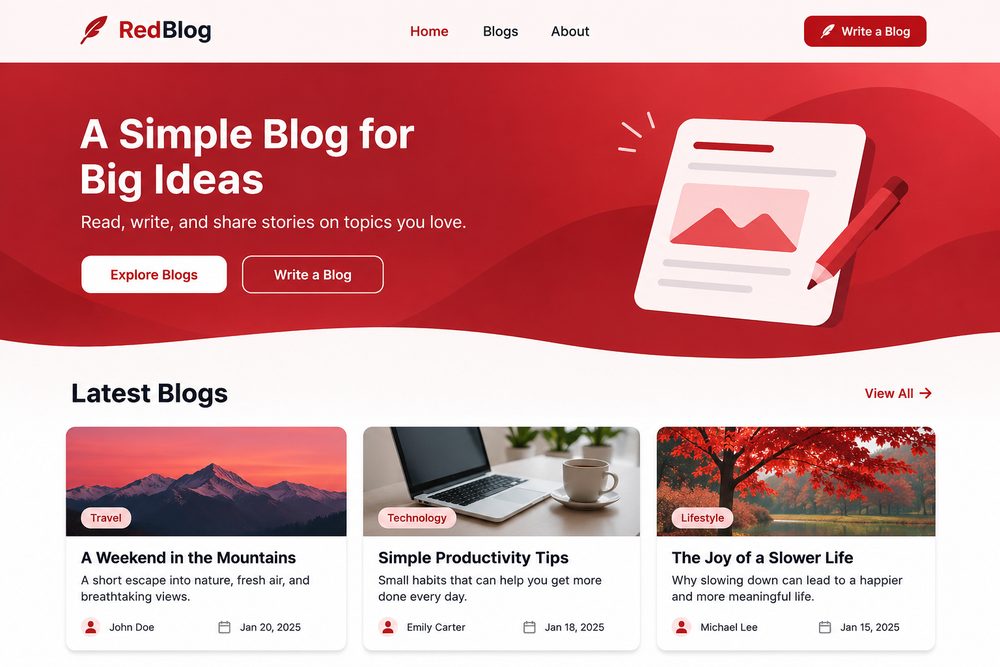
This time, along with the screenshot, drop in a reference image: a picture of how you'd like the blog to look and feel. The reference here is the RedBlog image ChatGPT drew in UI Ideas From Figma Make, Google Stitch and ChatGPT:
The request says exactly what you want from it:
Make our blog look and feel like this reference image. Use the red brand, a big hero and post cards, and keep every post and link.The agent reads both images and the brand rules, then edits the page and the stylesheet. It replies: "Done. Same three posts and links, in the reference look." The result has a red hero, clean cards, and the same three posts as before.
Reference and result
Put the reference next to the result and compare the parts:
- The hero is there, with the big title and the two buttons.
- The cards are there too, with the image, the tag, the author and the date.
It isn't an exact copy, and it doesn't need to be. It's the same feel, with our own posts. If the reference is someone else's page, take the feel and leave their logo, name and text alone; the fair-use rules are in Google Stitch From a Sketch or Screenshot.
Check it by eye before you accept
Whichever way you go, ask three questions:
- Is everything still there?
- Same order, and the same buttons doing the same things?
- Is it easier to read than before?
If anything went missing, say so in one sentence and ask the agent to put it back.
Common mistakes
- Only saying "make it modern". Without "keep every field and the same flow", the agent may drop or reorder things.
- Not naming what bothers you. Borders, tiny text and flat grey buttons are specific. "It looks bad" isn't.
- Expecting an exact copy of the reference. You're after the feel, with your own content.
- Accepting without clicking. Check that every button still does what it did.
Try it yourself
Pick an old page of your own. Write down three things that make it look dated, then give the agent one screenshot and a request that names what to keep. Compare before and after with the three questions.
Related course on Udemy
The Python Architect Masterclass: Full Stack to AI Engineer
Python, Django, FastAPI, React, Docker, AWS, LLMs, RAG, agents and MCP, from first steps to AI engineer.View on Udemy ↗: The Python Architect Masterclass: Full Stack to AI Engineer (paid course, opens in a new tab)Related posts
One Request, Two Answers: the Same Post as an HTML Page and as JSON
Ask a Django blog for the same post twice: once as a 12,731-byte HTML page built by a template, once as 2,976 bytes of JSON built by a serializer. Compare the headers, see who builds the page, and why the server still owns every write.
A Blog Design from a Prompt: Downloading Figma Make Code and Reading App.tsx and BlogCard.tsx
Make a blog design from a prompt in Figma Make, download src.zip, unzip it with Python's zipfile module, and read the two files that matter: App.tsx with its selectedPost state and BlogCard.tsx with its props.
How a Web Page Works: HTML Tags, Elements and Attributes
A web page is a text file full of labelled pieces. Learn tags, attributes and nesting with three tiny pages, and see what breaks when an attribute or a closing tag is wrong.
Semantic HTML: header, nav, main, aside and footer as Page Landmarks
The same page written as div soup and with semantic tags looks identical, but only one gives screen readers and search engines landmarks and an outline. Plus tables, div, span and the one-main rule.