
Motion in React: Entrance, Hover, Exit and Layout Animations
Small animations that make an app feel premium, with the motion package: a staggered entrance, a springy button, a list row that slides out while the others glide up, a reduced-motion setting, and the missing AnimatePresence bug.
What you will learn
- Animate an entrance with initial, animate and a staggered delay
- Add hover and tap micro-interactions with whileHover and whileTap
- Animate a removed list item with exit, AnimatePresence and layout
- Respect the reduce motion setting with MotionConfig
Before you start
- React components and props
- React useState
A door that opens smoothly tells you where to go. A wall that changes instantly leaves you confused.
Take a list of tasks and remove "Email Jack". With no motion, the row just vanishes, the list jumps up, and you think: wait, what happened? With motion, the row slides away and fades out, and the other rows glide up to close the gap. Same result, but your eyes followed what happened. Motion is feedback. It shows the user what just changed.
One package, four jobs
npm install motionThe package is called motion, and you import from motion/react. Older tutorials use the name framer-motion. That is the old name.
| Job | Props |
|---|---|
| Entrance | initial, animate |
| Hover | whileHover, whileTap |
| Exit | exit (inside AnimatePresence) |
| Layout | layout: neighbours glide to their new places |
There are no timelines and no separate animation files. Just props. A plain div becomes motion.div, a list item becomes motion.li, a button becomes motion.button.
Entrance: fade and rise
import { motion } from 'motion/react'

const names = [
  'Write report', 'Email Jack', 'Book flights',
]
type Props = { run: number }

export default function Entrance({ run }: Props) {
  return names.map((name, i) => (
    <motion.div
      key={run + name}
      className="item"
      initial={{ opacity: 0, y: 24 }}
      animate={{ opacity: 1, y: 0 }}
      transition={{ duration: 0.4, delay: i * 0.1 }}
    >
      {name}
    </motion.div>
  ))
}
For each of the three task names you return a motion.div. initial is opacity: 0, y: 24, so it starts invisible and a little below. animate is opacity: 1, y: 0, so it ends fully visible, in place. The transition lasts 0.4 seconds, and the delay is i * 0.1, so every item starts a little later than the one before.
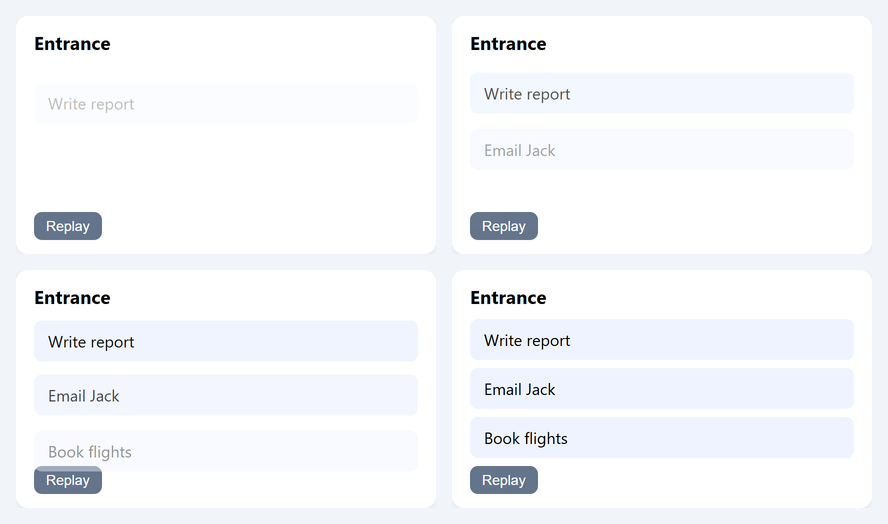
That small stagger is what makes it feel premium. (The key includes run, so the Replay button in the demo remounts the items and plays it again.)
Hover: the button answers
import { motion } from 'motion/react'

export default function SaveButton() {
  return (
    <motion.button
      whileHover={{ scale: 1.08 }}
      whileTap={{ scale: 0.95 }}
      transition={{ type: 'spring', stiffness: 400 }}
    >
      Save changes
    </motion.button>
  )
}
whileHover scales the button to 1.08 while the pointer is on it. whileTap scales it to 0.95 while you press. The transition is a spring with stiffness 400, so it feels bouncy rather than robotic.

You never wrote a hover handler or any state for this. Motion does that work. That is a micro-interaction: a tiny answer to what the user does.
Exit: leave smoothly
This is where people get stuck.
import { useState } from 'react'
import { AnimatePresence, motion } from 'motion/react'

const start = ['Write report', 'Email Jack', 'Book flights']

export default function Tasks() {
  const [items, setItems] = useState(start)
  const remove = (n: string) =>
    setItems(items.filter((x) => x !== n))
  return (
    <ul>
      <AnimatePresence mode="popLayout">
        {items.map((name) => (
          <motion.li
            key={name}
            layout
            exit={{ opacity: 0, x: 80 }}
            onClick={() => remove(name)}
          >
            {name}
          </motion.li>
        ))}
      </AnimatePresence>
    </ul>
  )
}
The items are in state, and clicking a row calls remove, which filters it out of the array. Each row is a motion.li with the layout prop and an exit of opacity: 0, x: 80. And the important part: the whole list is wrapped in AnimatePresence. Why? Because when React removes an element, it is gone immediately. AnimatePresence keeps the row on screen long enough to play its exit.
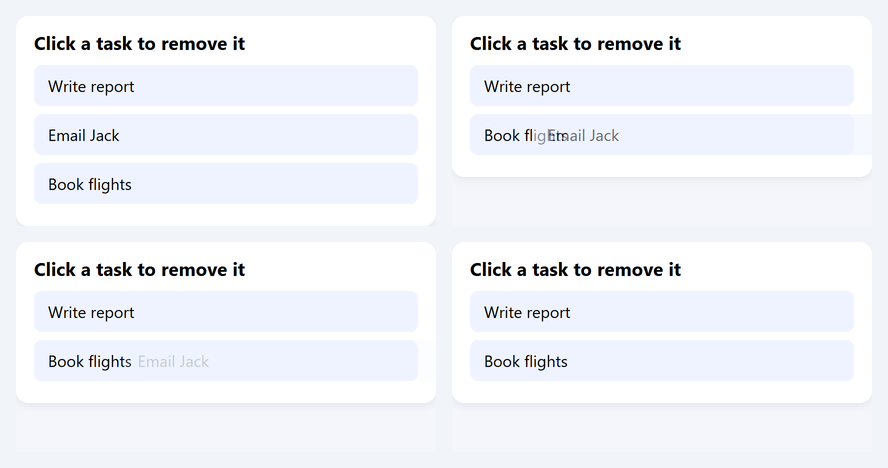
No jump anywhere. The gap closing is layout doing its job, with no extra code from you.
Reduced motion: respect the setting
Some people get dizzy from movement, so their operating system has a reduce motion setting. In main.tsx, the app is wrapped in MotionConfig:
import { createRoot } from 'react-dom/client'
import { MotionConfig } from 'motion/react'
import './index.css'
import App from './App'

createRoot(document.getElementById('root')!).render(
  <MotionConfig reducedMotion="user">
    <App />
  </MotionConfig>,
)
With reducedMotion="user", Motion follows that system setting.
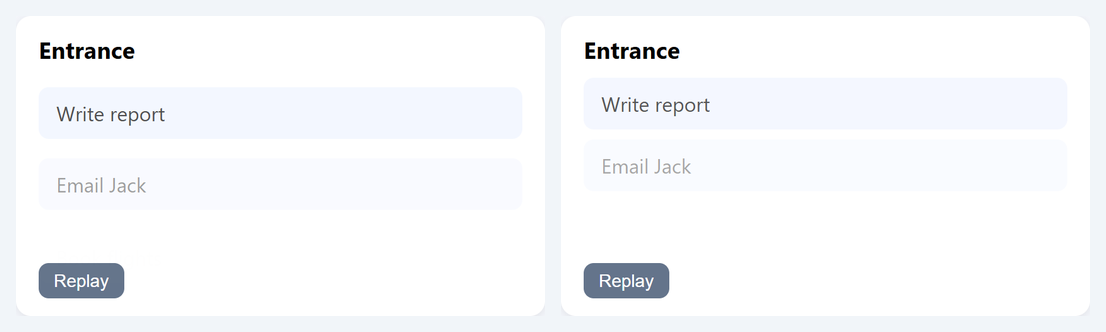
Fading is gentle, so it stays. Movement like the rise is skipped. One line, and this is part of doing animation properly, not an extra.
Break it: no AnimatePresence, no exit
Here is the same list without the wrapper. The exit prop is still there:
import { useState } from 'react'
import { motion } from 'motion/react'

const start = ['Write report', 'Email Jack', 'Book flights']

// BREAK IT: the same list without <AnimatePresence>
export default function TasksNoExit() {
  const [items, setItems] = useState(start)
  const remove = (n: string) =>
    setItems(items.filter((x) => x !== n))
  return (
    <ul>
      {items.map((name) => (
        <motion.li
          key={name}
          layout
          exit={{ opacity: 0, x: 80 }}
          onClick={() => remove(name)}
        >
          {name}
        </motion.li>
      ))}
    </ul>
  )
}
Click a row and it is just gone at once. The code compiles, it runs, there is no error. There is simply no exit animation, which is why this is so easy to miss. It is not really a bug, it is a missing wrapper: React removes the row before exit can play. Wrap the list in AnimatePresence.
Common mistakes
- Importing from
framer-motionin a new project. The package ismotion, imported frommotion/react. exitwithoutAnimatePresence. Nothing happens and nothing complains.- Ignoring reduce motion. One
MotionConfigat the root covers the whole app.
Recap
| Job | What to write |
|---|---|
| Entrance | initial + animate, stagger with delay: i * 0.1 |
| Hover | whileHover + whileTap, spring transition |
| Exit | exit inside AnimatePresence |
| Layout | layout on the items that should glide |
| Respect users | <MotionConfig reducedMotion="user"> |
Motion is a foundation. AI can generate fancier animations, and you decide what feels right. Try it yourself: give the entrance items an exit too, wrap them in AnimatePresence, and see what happens when you press Replay.
StudyEasy AI Community

Learn AI engineering, share what you build, and connect with other learners.
Free resources: lesson files, notebooks and code
Ask questions and join engineering discussions
Meet real people learning and building with AI
Related course on Udemy
The Python Architect Masterclass: Full Stack to AI Engineer
Python, Django, FastAPI, React, Docker, AWS, LLMs, RAG, agents and MCP, from first steps to AI engineer.View on Udemy ↗: The Python Architect Masterclass: Full Stack to AI Engineer (paid course, opens in a new tab)Related posts
One Request, Two Answers: the Same Post as an HTML Page and as JSON
Ask a Django blog for the same post twice: once as a 12,731-byte HTML page built by a template, once as 2,976 bytes of JSON built by a serializer. Compare the headers, see who builds the page, and why the server still owns every write.
A Blog Design from a Prompt: Downloading Figma Make Code and Reading App.tsx and BlogCard.tsx
Make a blog design from a prompt in Figma Make, download src.zip, unzip it with Python's zipfile module, and read the two files that matter: App.tsx with its selectedPost state and BlogCard.tsx with its props.
How a Web Page Works: HTML Tags, Elements and Attributes
A web page is a text file full of labelled pieces. Learn tags, attributes and nesting with three tiny pages, and see what breaks when an attribute or a closing tag is wrong.
Semantic HTML: header, nav, main, aside and footer as Page Landmarks
The same page written as div soup and with semantic tags looks identical, but only one gives screen readers and search engines landmarks and an outline. Plus tables, div, span and the one-main rule.