
UI Ideas From Figma Make, Google Stitch and ChatGPT: One Prompt, Three Designs
Paste one plain prompt for a red blog into Figma Make, Google Stitch and ChatGPT and you get three different designs in a few minutes: an editable Figma design, a full design system plus a page, and a picture that ChatGPT turns into one HTML file.
What you will learn
- Give the same plain prompt to Figma Make, Google Stitch and ChatGPT
- Open a Figma Make preview as a design on the Figma canvas
- Read the design system Stitch builds before it draws the page
- Turn a ChatGPT image of a page into a single HTML file
Before you start
- The AI Design Landscape: three kinds of tool
When you start a new screen, it helps to see a few different ideas before you commit to one. AI makes that cheap. In this lesson we take one plain prompt and give it to three tools: Figma Make, Google Stitch and ChatGPT. A few minutes later we have three different designs for the same idea.
The prompt
This is the prompt typed into all three tools, word for word:
Create a very simple blog application which needs to be attractive and leverage the color palette with red color being the main color.Plain words, no technical values. Each tool reads it differently:
| Tool | What it does with the prompt | What you get |
|---|---|---|
| Figma Make | Plans the look, writes the page, shows a working preview | A design you can open and edit on the Figma canvas |
| Google Stitch | Writes a plan and a design system first, then the page | A design system plus a full page |
| ChatGPT | Draws a picture of the page | An image, and then the code in one file |
Figma Make
Search for Figma and open figma.com, the official site. Sign in with a free account. On the home page, click Make at the top right. Make is where you describe an idea and AI builds it. It asks "What do you want to make?" Paste the prompt and send it.
The agent first plans the look (it described "a focused red editorial palette"), then writes the page. In a minute or two it's done. On the left it lists the files it edited, and on the right is the working preview: "Ideas for a more considered life", with the red accent exactly where it matters.
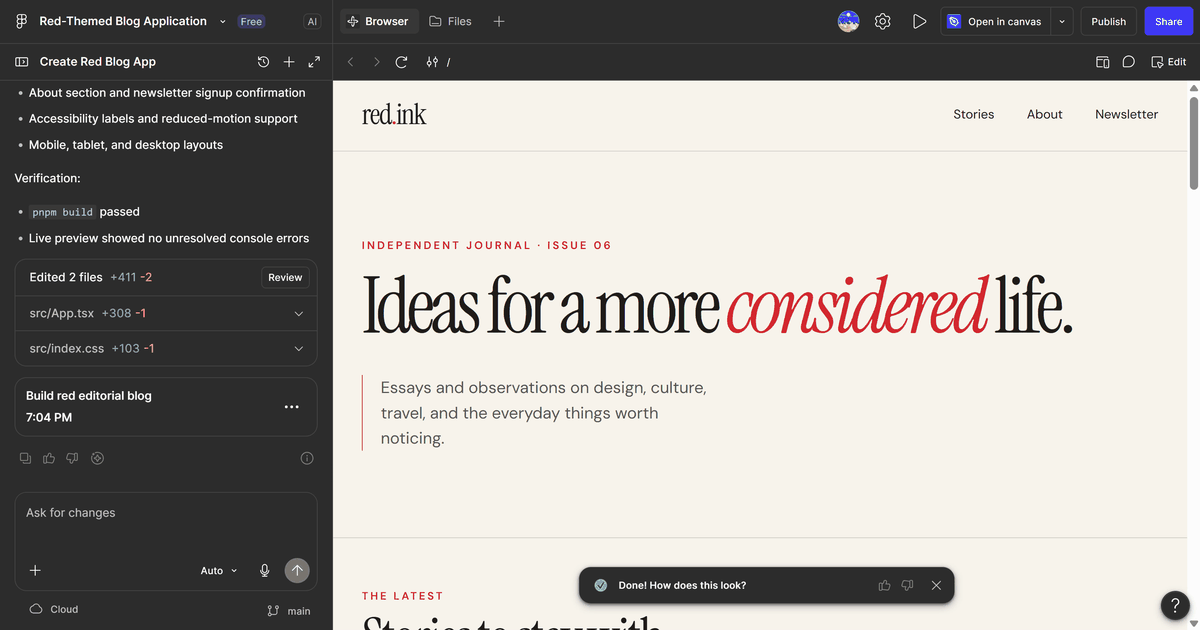
src/App.tsx and src/index.css) and the working preview on the right.Open it on the canvas
A preview is nice, but you want a design you can work with. Click Open in canvas at the top right, and the page appears on the Figma canvas as a real design. You can move things, change the text, or take a snapshot.
If you click on code, Figma asks you to upgrade to Dev Mode, because copying the code is a paid feature. That's fine. The design itself is all you need here: you can give the snapshot to an AI agent and build the UI from it.
Google Stitch
Go to stitch.google.com. Stitch asks whether you're designing an app or for the web. We're building a website, so pick Web, paste the same prompt and send it.
Stitch doesn't jump straight to the page. First it writes a plan ("a vibrant editorial design system centered around crimson and scarlet tones"), then it builds that design system, called Crimson Editorial: colours, fonts and buttons, all in red.
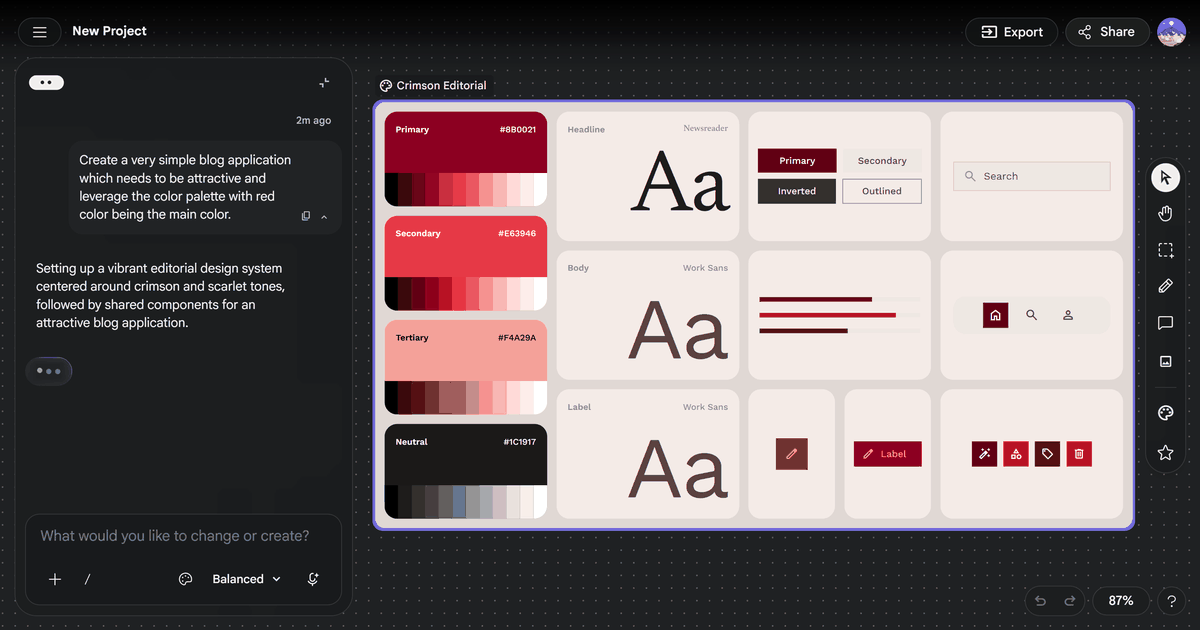
After that comes the page itself: The Crimson Post. Same prompt, a different take on the idea.
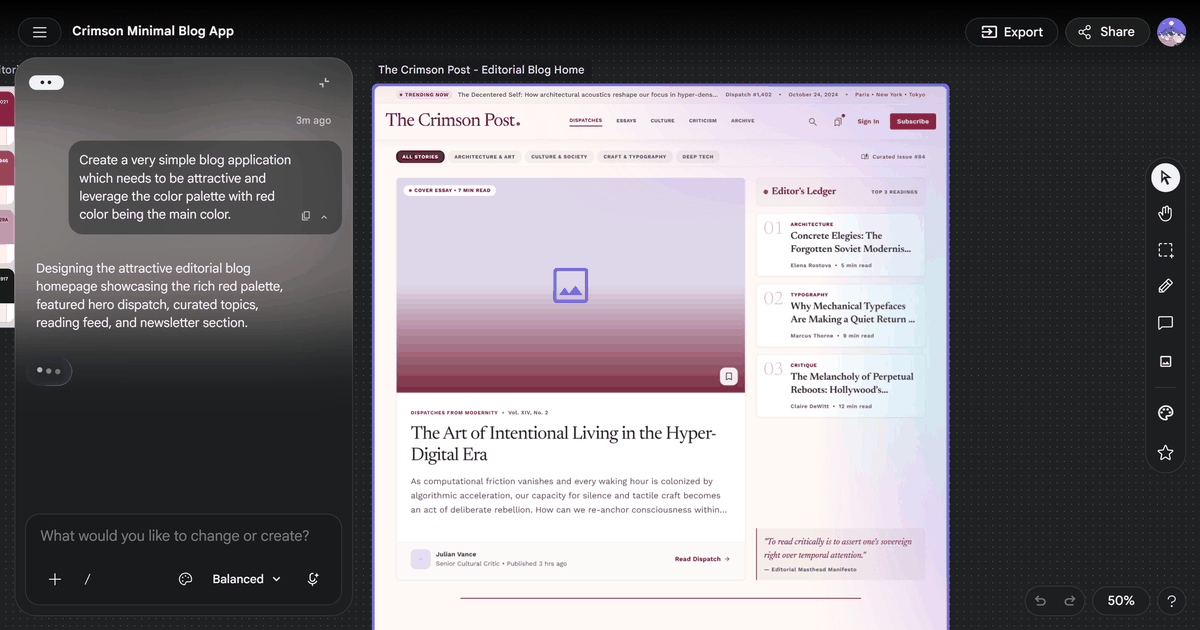
That design system is useful later. In Stitch to Figma to Code we take a Stitch screen into real code with our own tokens.
ChatGPT: a picture, then the code
In ChatGPT, paste the same prompt and add one line, "Generate the image". ChatGPT sketches it out, which takes a little while, and the result is a picture of the whole page: RedBlog, a big red hero, and three blog cards below.
With ChatGPT you can go one step further. Ask:
All right, so this blog application is good. Could you give me the code for HTML and HTML?Yes, it says HTML twice. That was voice typing, and ChatGPT still understood that it meant HTML and CSS. It replied that it would recreate the design as a responsive HTML page with the CSS inside, all in one file, so it opens directly in a browser. Click the download link, open redblog.html, and it looks just like the picture.
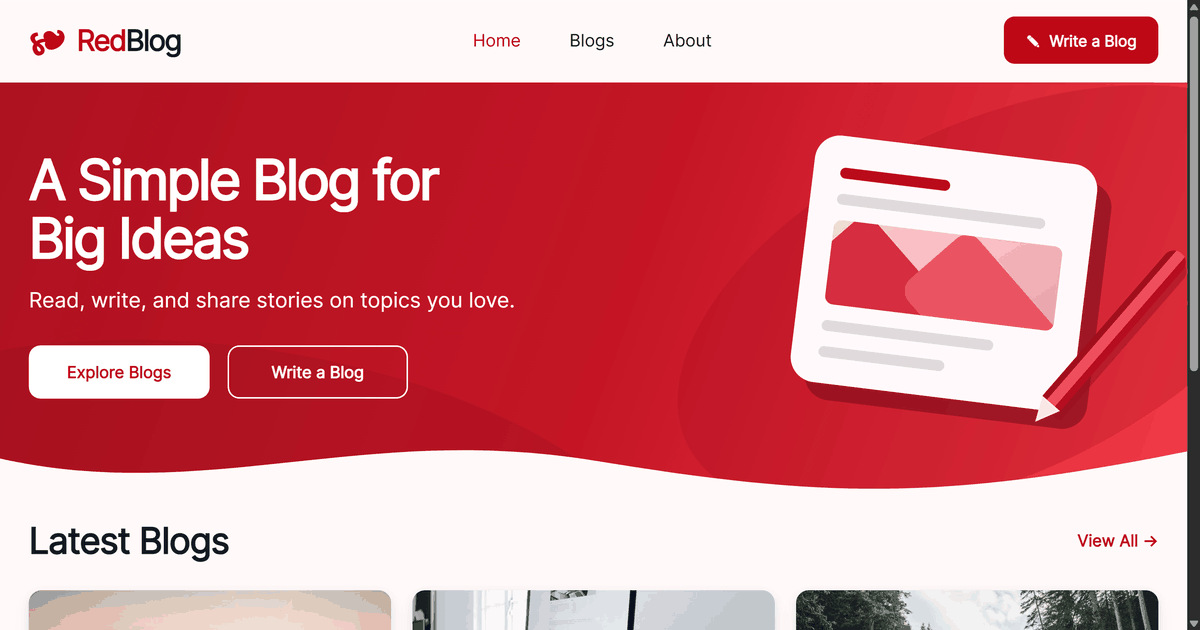
That RedBlog image comes back later as a reference: in Upgrade a Dated UI From One Screenshot, an agent restyles an old blog to look like it.
Three ideas in a few minutes
| Tool | Result for the same prompt | Good for |
|---|---|---|
| Figma Make | red.ink, "Ideas for a more considered life" | A design you can open and edit on the canvas |
| Google Stitch | Crimson Editorial design system, The Crimson Post page | A design system along with the full page |
| ChatGPT | RedBlog image, then redblog.html | A quick picture, and the code in one file |
Look at each one by eye and keep the idea you like best. Every tool gives you something a little different, which is exactly why it's worth asking all three.
Common mistakes
- Stopping at the first tool. The second and third ideas are nearly free.
- Treating the result as finished. These are ideas. Check hierarchy, states and contrast before you build on one.
- Paying for Dev Mode just to copy code. A snapshot of the design is enough for an agent to build from.
- Copying a design you found into your own product. Take the idea, then make it yours with your own name, colours and words.
Try it yourself
Write one plain prompt for a page you need, with the main colour in it, and give it to two of the three tools. Put the results side by side and write one sentence on why you'd keep one of them.
Related course on Udemy
The Python Architect Masterclass: Full Stack to AI Engineer
Python, Django, FastAPI, React, Docker, AWS, LLMs, RAG, agents and MCP, from first steps to AI engineer.View on Udemy ↗: The Python Architect Masterclass: Full Stack to AI Engineer (paid course, opens in a new tab)Related posts
One Request, Two Answers: the Same Post as an HTML Page and as JSON
Ask a Django blog for the same post twice: once as a 12,731-byte HTML page built by a template, once as 2,976 bytes of JSON built by a serializer. Compare the headers, see who builds the page, and why the server still owns every write.
A Blog Design from a Prompt: Downloading Figma Make Code and Reading App.tsx and BlogCard.tsx
Make a blog design from a prompt in Figma Make, download src.zip, unzip it with Python's zipfile module, and read the two files that matter: App.tsx with its selectedPost state and BlogCard.tsx with its props.
How a Web Page Works: HTML Tags, Elements and Attributes
A web page is a text file full of labelled pieces. Learn tags, attributes and nesting with three tiny pages, and see what breaks when an attribute or a closing tag is wrong.
Semantic HTML: header, nav, main, aside and footer as Page Landmarks
The same page written as div soup and with semantic tags looks identical, but only one gives screen readers and search engines landmarks and an outline. Plus tables, div, span and the one-main rule.